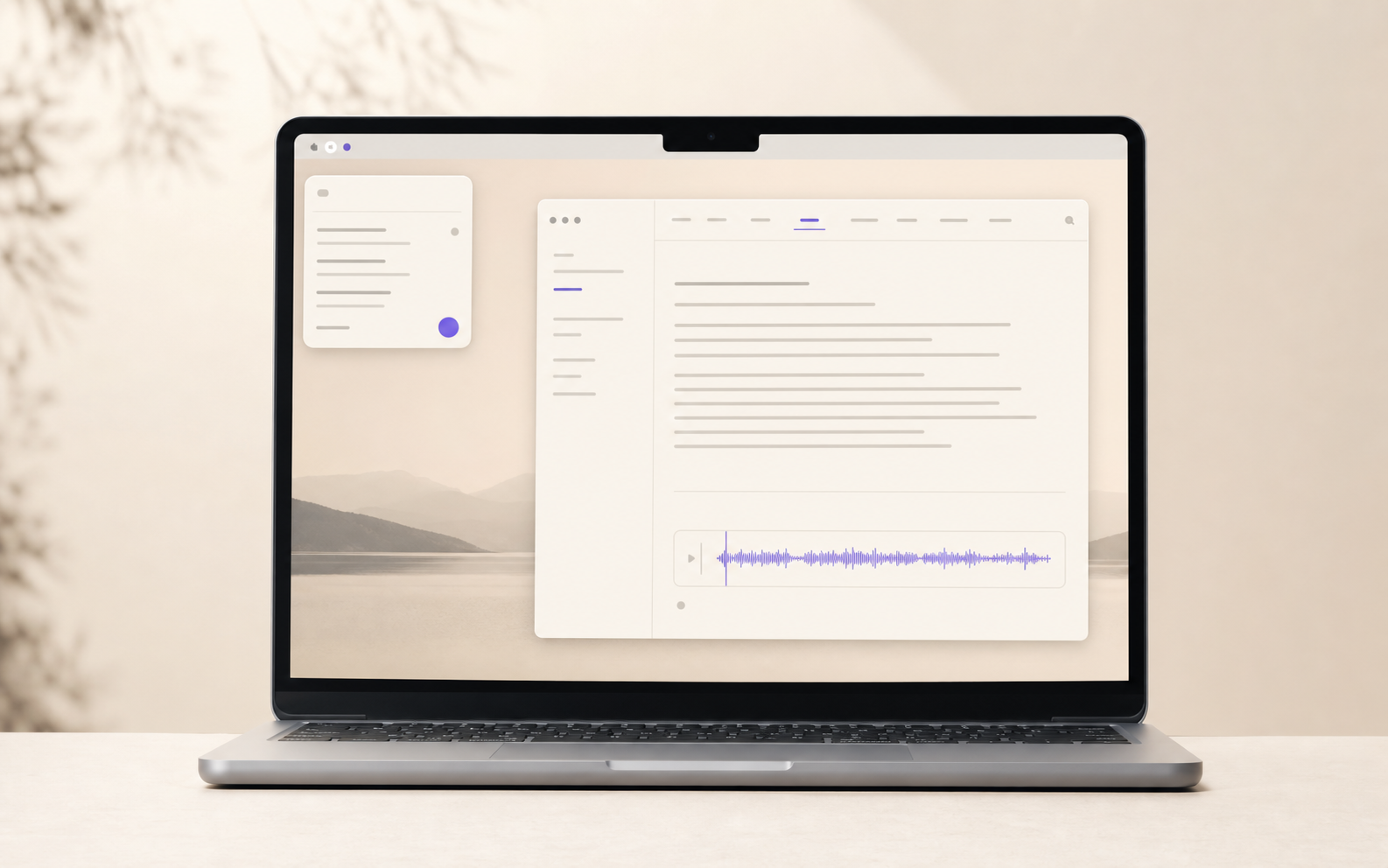
01Voice-note transcription
Voice notes become editable text.
Record a note. Pasteful transcribes it on your Mac and puts the words in the same document, ready to edit, format or send.
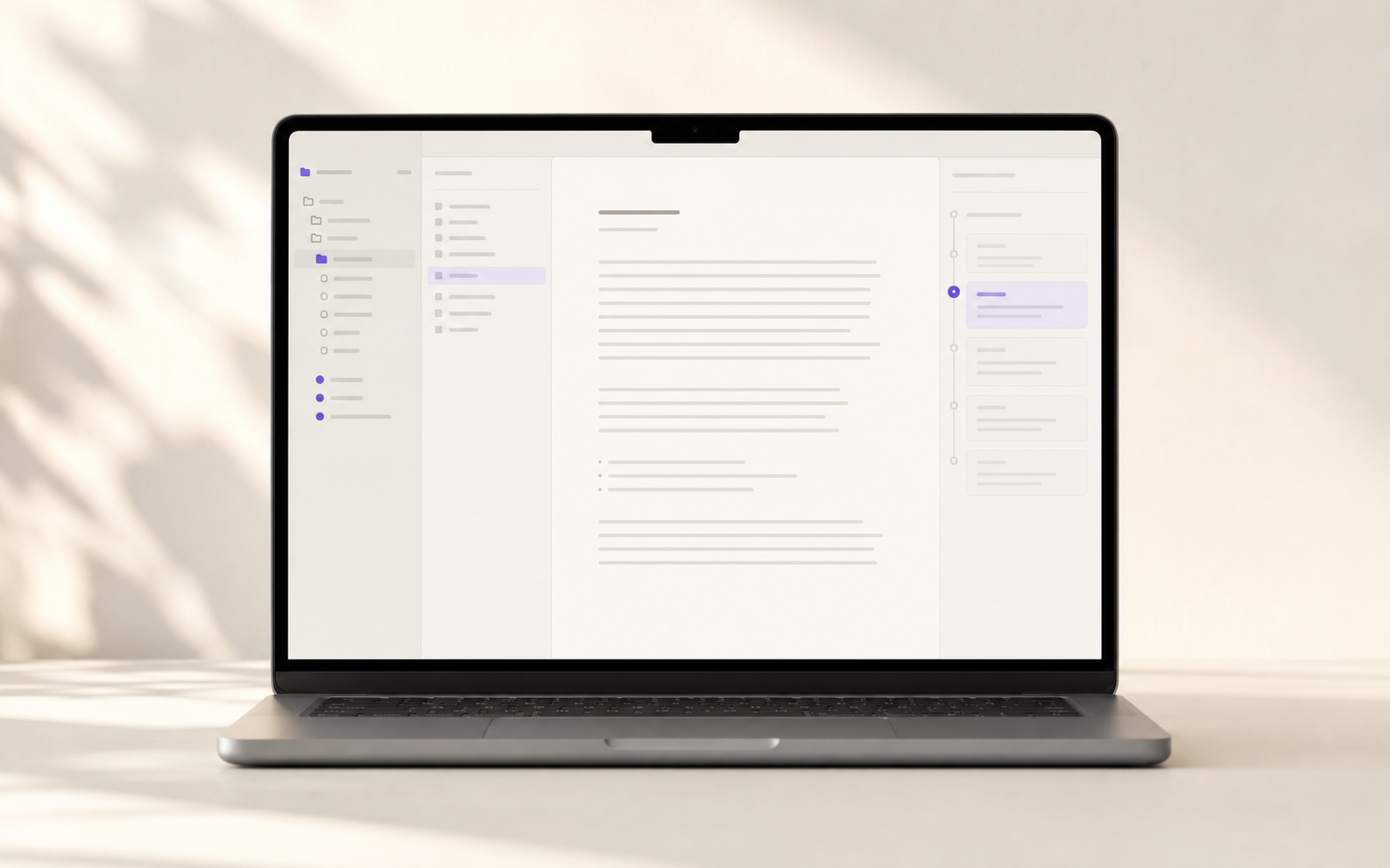
Pasteful for Mac keeps notes, copies and files together in a folder you own. Format text for where it is going, without leaving your flow.
A local workspace for the draft, the document and the finished copy—without making your work live in somebody else's system.
01Voice-note transcription
Record a note. Pasteful transcribes it on your Mac and puts the words in the same document, ready to edit, format or send.
02Markdown + rich text
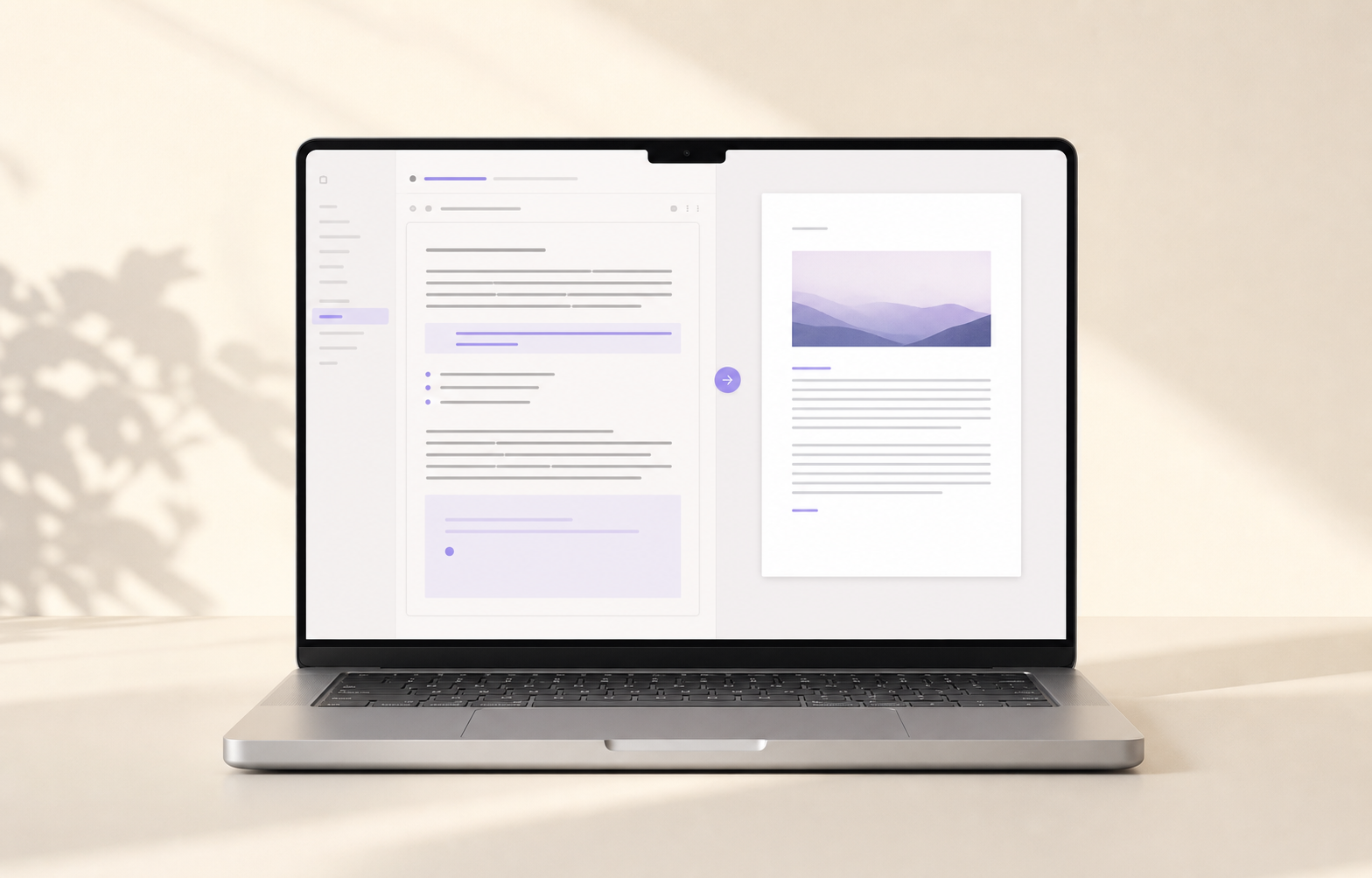
Write in the formatted document, then switch to the Markdown source when you need it. Both views read the same local file.
03Copy formatting
Choose a destination and inspect the converted result before copying headings, lists, links and tables to the clipboard.
04Local version history
Every completed save makes a version next to the note. Compare or restore it without setting up a backup routine.
05Folder search
Search titles and everything inside the folder you opened. Results point back to the local note, not another database.
06Local files
Notes, attachments and saved copies live in documented local files. Work offline, back up your way and leave with every file intact.
Capture from anywhere. Keep rich work in local files. Format it for the next app before you copy or send it.
Start a note, save selected text, or record and transcribe a voice note without leaving the work already on screen.
Keep notes, attachments, links and version history in folders you own. Use the workspace without making it the only place your work can live.
Preview how the destination receives your text, then copy, export or open the finished document in the app you need.
Pasteful is not trying to replace every tool. It is for the moment a thought needs to stay yours and still work perfectly somewhere else.
Over Notion
Notion is a great place to plan and share. Pasteful is for turning a note, meeting transcript or AI answer into the version that belongs in Slack, email, Word or the next document.
A local document, an exact destination preview, and copy that is ready for the app you chose.
Over Apple Notes
Apple Notes is excellent for the thought you need to keep. Pasteful gives that thought room to grow: a rich document, a source view when you want it, version history and a folder you control.
One place to catch the idea, shape it properly and send it on without starting again somewhere else.
Over Obsidian
Obsidian is powerful for building a personal knowledge system. Pasteful keeps the local-file ownership and connected workspace depth, then makes rich editing and destination-aware output part of the everyday experience.
Your folders stay yours, while the editor and the final copy are ready for work from the first note.
Pasteful combines private clipboard history, a local Markdown workspace, rich documents and destination-aware formatting.
Key capabilities
Open Pasteful from the menu bar or capture selected text from another app without switching context.
Sync through your own encrypted iCloud account or folder sync service. Pasteful does not host your notes.
Store notes as ordinary Markdown files in folders you choose. Open, move, sync and back them up outside Pasteful.
Link notes as you write, see backlinks, and update links automatically when a file moves or changes name.
Use note properties to view the same local files as tables, cards, lists, maps, boards and calendars.
Move, nest, transform and reuse blocks for text, lists, tasks, code, equations and tables.
Choose where text is going and format it for that destination before it reaches your clipboard.
Open Python, JavaScript, TypeScript, JSON and other text files as code. Pasteful preserves their content instead of treating them as notes.
Run Prettier for the files it supports, or the formatter you choose for Python. Review the change before applying it.
Send a file to VS Code, Cursor or the editor you choose. Your local folder remains the source of truth.
Keep a searchable history of the copies you choose to save, stored locally on your Mac.
Run actions from the keyboard, Shortcuts, the command line or another app, with explicit access to your files.
Every feature is listed here. Open an item to read exactly what it includes.
Paste rich text from other apps and keep the headings, lists, links and emphasis that matter.
Use callout blocks, highlights and quotes to separate supporting detail from the main note.
Record a voice note, transcribe it on your Mac, and keep the original recording with the note.
Move, nest, transform and reuse blocks for text, lists, tasks, code, equations and tables.
Use callouts, toggles, quotes, dividers, highlights and columns when paragraphs are not enough.
Keep a project, its notes and supporting detail together without flattening it into one long document.
Add properties to work, then view it as a table, board, timeline, calendar, gallery, chart or map.
Relate notes, bring linked values forward, and calculate the parts that would otherwise live in a spreadsheet.
Turn a note into a template, a button or a form that creates the next piece of work in the right place.
Leave a comment, mention someone or suggest a change on a specific block without losing the original content.
Lock a page structure, review its history, and choose what to keep when the work changes direction.
Keep files, images, embeds and references beside the text, then export a clean version when needed.
Keep your workspace in documented local files. Work offline, back it up your way, and export whenever you want.
Add a source where you make a claim and keep the citation connected to the detail it supports.
Create links as you type, see which notes link back, and keep links working when a file is renamed.
Store notes as ordinary Markdown files in folders you choose. Open, move, sync and back them up outside Pasteful.
Save versions automatically in your chosen location, compare changes, and restore an earlier version when needed.
Keep a searchable history of the copies you choose to save, stored locally on your Mac.
Open Pasteful from the menu bar or capture selected text from another app without switching context.
Send clips, links and quick notes to one inbox, then file them when you are ready.
Collect several clipboard items in order and combine them into one note or one formatted copy.
Open a saved clipboard item again and format it for a new destination without losing the original.
Drop files into Pasteful and keep them in your workspace. Reveal unsupported files in Finder.
Add images to a note and keep the image files in your workspace folder beside the Markdown.
Choose when Clipboard History records copies and pause capture whenever you need it off.
Choose where text is going and format it for that destination before it reaches your clipboard.
See every formatting and cleanup change before you copy, share or export the text.
Open Python, JavaScript, TypeScript, JSON and other text files as code. Pasteful preserves their content instead of treating them as notes.
Run Prettier for the files it supports, or the formatter you choose for Python. Review the change before applying it.
Send a file to VS Code, Cursor or the editor you choose. Your local folder remains the source of truth.
Export the current note as a Microsoft Word document.
Export the current note as a PDF from the same document view you are reviewing.
Send a finished draft to another app while the original remains in your workspace.
Import an exported library as local files you can continue to edit and organise.
Preview how an app or service will receive your headings, links, lists and other rich text before copying.
Open an exported document in the app you choose while the original note remains in your folder.
Sync through your own encrypted iCloud account or folder sync service. Pasteful does not host your notes.
Keep an endless scratchpad for temporary work alongside notes you pin for regular access.
Open two notes side by side, including a scratchpad next to a permanent note.
Run saved transformations, insert reusable patterns, and add extensions for recurring work.
Enable Vim editing controls when you want them and leave them off when you do not.
Lock a note with Touch ID or Face ID, make it read-only, or archive it without deleting it.
Recover deleted notes, restore backups, and keep both versions when sync creates a conflict.
Calculate numbers and convert units directly in a note using the formats you use locally.
Extract text from a screenshot or image on your Mac, then add, edit or copy the result.
Open a small scratchpad from a keyboard shortcut or the menu bar and keep it above your other apps.
Start a note from a widget, photo or voice on your phone, then keep it in the same workspace.
When a file changes elsewhere, keep both versions and choose what to keep instead of silently overwriting work.
Notes, attachments and saved clipboard items stay on your Mac unless you choose your own sync service.
Core writing, capture, formatting and file features work without an add-on ecosystem to install or maintain.
Organise work with the folders and filenames you already use without hiding the underlying files.
Link notes as you write, see backlinks, and update links automatically when a file moves or changes name.
Search filenames, headings, tags and note content, then move a section without rebuilding the note around it.
Create a daily note from a template and keep reusable note patterns close at hand.
Use note properties to view the same local files as tables, cards, lists, maps, boards and calendars.
Lay notes, files and links out on a canvas when a list no longer shows the shape of the work.
Save the tabs, panes and windows you use for a task, then return to that layout later.
Keep recordings, images, video and PDFs beside a note. Preview, mark up and reveal the original local file.
Save a web page or passage to your workspace as local, searchable material you can cite and edit.
Turn a note into a presentation, published page or shared document with the audience and output chosen first.
Open a random note from your workspace when you want to revisit an earlier idea.
Run actions from the keyboard, Shortcuts, the command line or another app, with explicit access to your files.
Choose the appearance, arrange workspace tools, and add vetted extensions without changing the basic file model.
Share a workspace deliberately, see changes, and return to an earlier version when two people edit the same work.